VSCode Remote-SSH: Edit Remote Files Locally, a Remote Development Powerhouse
VSCode Remote-SSH: Edit Remote Files Locally, a Remote Development Powerhouse
At home I've always written code on a MacBook Air and synced it to my home server through a Git service on the LAN. Recently it hit me that back when I used WSL on Windows, VSCode on Windows could work directly with code in the WSL directory. So could I remote into Ubuntu from my MacBook too? I looked it up, and yes, it works. Here's the whole process.
Installation and Configuration
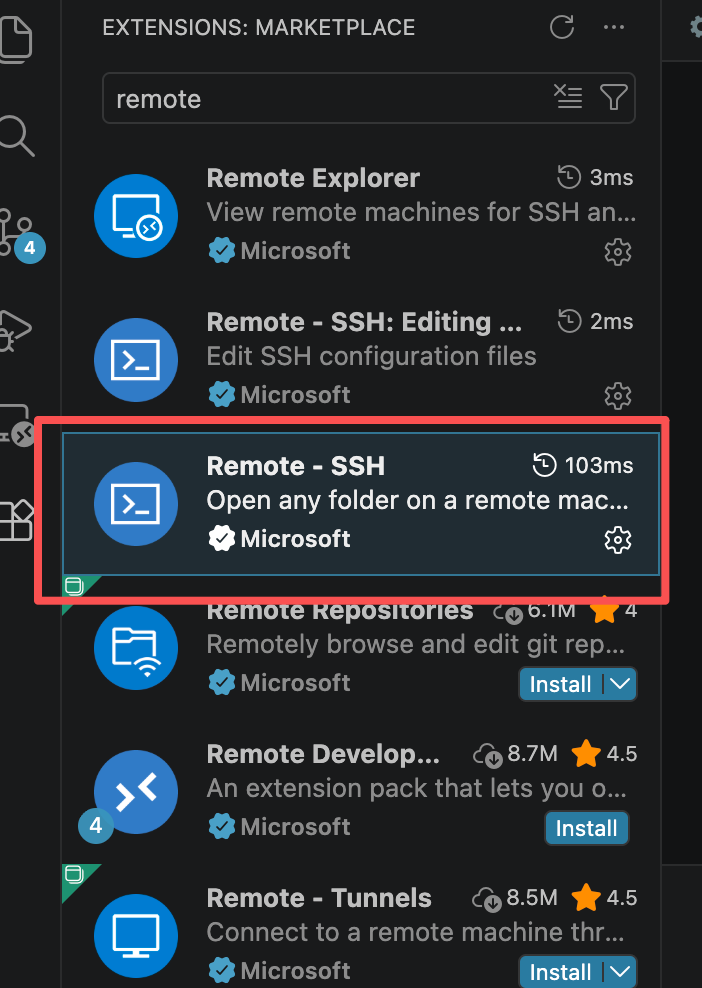
In VSCode's extension panel, search for remote, then hit the Install button on Remote - SSH.
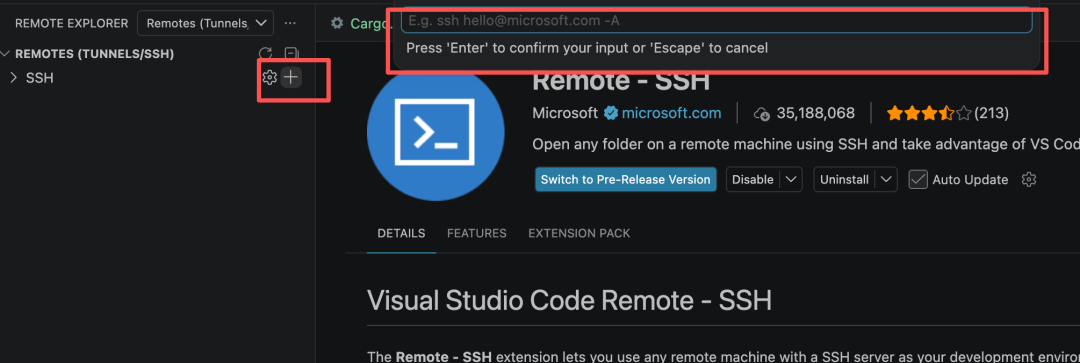
After installation, a small computer icon shows up in the left activity bar. Click it to open the remote settings.
On the settings page, click the + button at the right of the SSH row. An input box appears in the top right corner, prompting for the username and IP address of the remote connection:
sunqp@192.168.2.17
Enter the server's username and IP address, then press Enter.
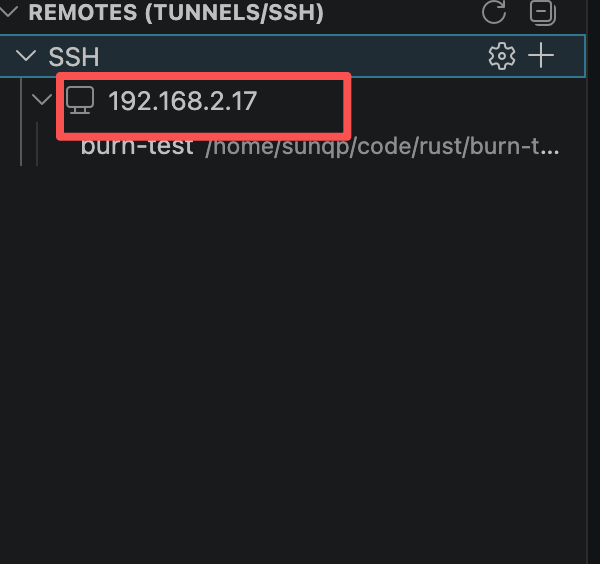
Next it prompts you to choose an SSH configuration file. Pick the first one. After pressing Enter, the remote machine's config shows up under SSH.
Connecting and Using
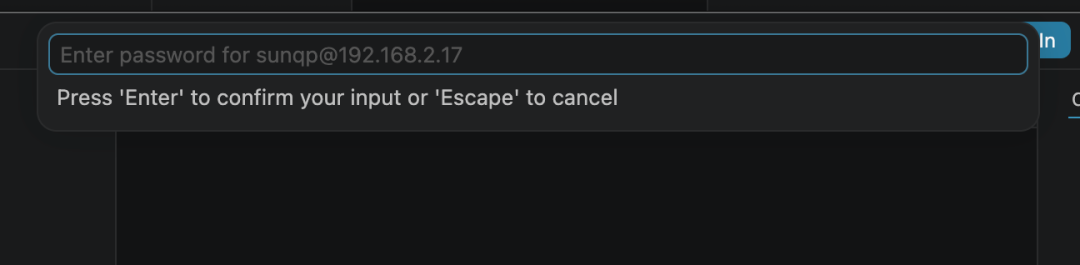
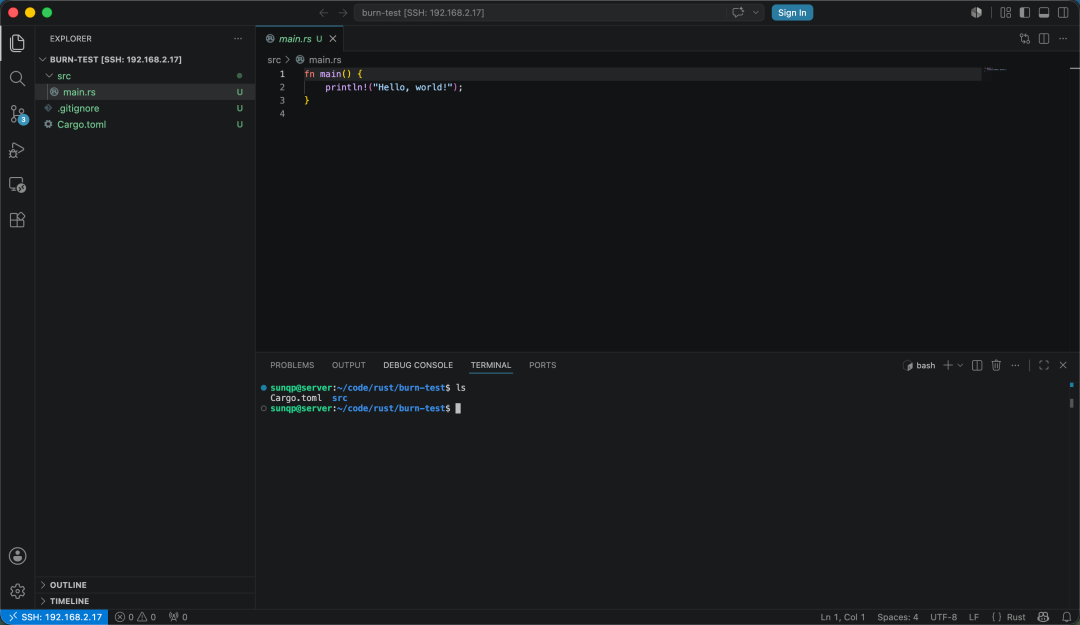
Click the remote machine and you'll be prompted for the password. Once you're in, pick a directory and everything else works just like local development.
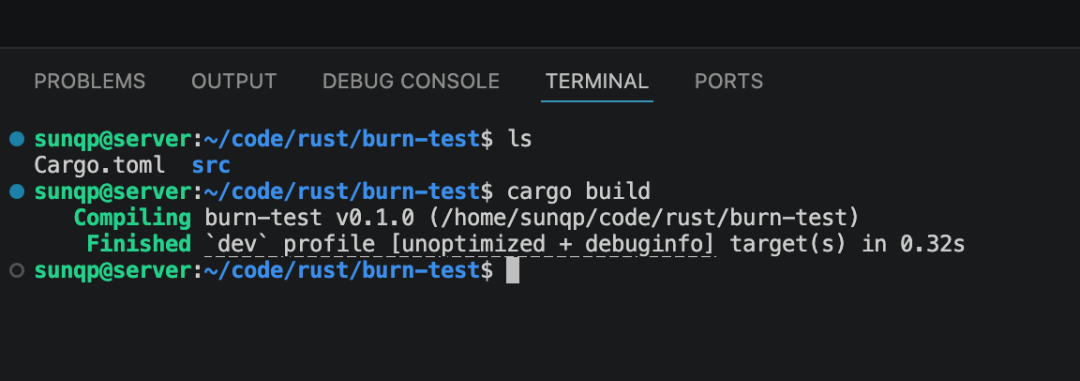
You can also open a new terminal and work in it directly. Super convenient.
Summary
With the Remote-SSH extension, you can edit server code directly in VSCode. You get a visual editor plus the server's resources for fast compiles. If this fits your workflow, give it a try. Any questions, welcome in the comments.